
Passwords are still the weakest link in most organisations. They get phished, reused, sprayed and leaked – and even traditional MFA with push notifications or SMS codes can be bypassed by modern phishing kits that relay sessions in real time.
Passkeys fix that. They’re phishing-resistant, based on the FIDO2/WebAuthn standard, and – once set up – faster for users than typing a password. They’ve moved from consumer novelty to enterprise standard: in the FIDO Alliance’s 2026 workforce report, 68% of organisations with 500+ employees said they were deploying, piloting or rolling out passkeys for employees.
This guide explains the options, the decisions you need to make, and a step-by-step rollout plan.
What is a passkey?
A passkey is a cryptographic key pair created for a specific service:
- The private key stays on the user’s device or security key and never leaves it.
- The public key is stored by the service (e.g. Microsoft Entra ID, Google Workspace, Okta).
- At sign-in, the device proves it holds the private key – after the user unlocks it with a fingerprint, face or PIN.
Because the key is tied to the real domain of the service, a fake login page simply can’t use it. That’s what makes passkeys phishing-resistant – unlike passwords, SMS codes or push approvals.
The big decision: device-bound or synced?
| Device-bound passkeys | Synced passkeys | |
|---|---|---|
| Where the key lives | One specific device or hardware key | Synced via a provider (Apple iCloud Keychain, Google Password Manager, password managers) |
| Examples | YubiKey and other FIDO2 security keys, Windows Hello for Business, Microsoft Authenticator | Passkeys on iPhone/Mac, Android, 1Password, Bitwarden |
| Security | Highest – key can’t be copied | High – but security depends on the sync provider account |
| Recovery | Lose the device, lose the key – need a backup method | Survives device loss or replacement |
| Attestation (verify device type) | ✓ | Usually ✗ |
| Cost | Hardware keys cost money | Usually free |
| Best for | Admins, high-risk users, regulated environments | General workforce, BYOD, frontline workers |
Most organisations end up with both: device-bound passkeys or hardware keys for privileged accounts, and synced or authenticator-app passkeys for everyone else.
Microsoft Entra ID: passkey profiles
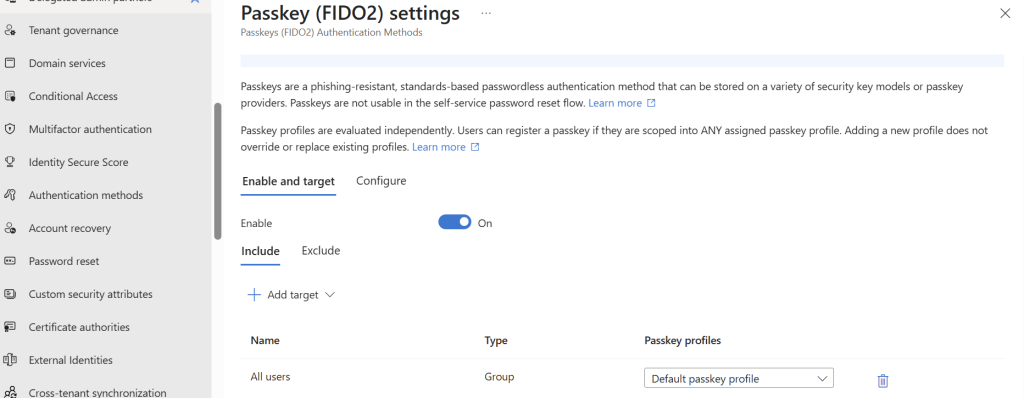
Microsoft made this much easier in 2026. Passkey profiles and synced passkeys are now generally available in Microsoft Entra ID, and from March 2026 Microsoft began moving tenants to the new experience automatically. Passkey profiles let you:
- apply different passkey policies to different groups
- choose per profile whether users can register device-bound, synced or both passkey types
- enforce attestation and restrict specific authenticator models (by AAGUID) where needed
Existing FIDO2 settings are migrated into a default profile. Review it to make sure it matches your intent.
Before you start: prerequisites
- Identity platform support – Entra ID, Google Workspace, Okta and most modern IdPs support passkeys.
- Device inventory – modern Windows, macOS, iOS and Android versions support passkeys natively. Check older devices and shared PCs. (Still on Windows 10? See Life After Windows 10 End of Support.)
- Application inventory – which apps sign in through your IdP (good), and which still use their own passwords, LDAP, RADIUS or legacy protocols (need a plan).
- Policy decisions – who gets which passkey type, whether personal devices are allowed, how recovery works.
- Break-glass accounts – keep at least two emergency accounts with strong, separately stored credentials (ideally hardware keys) and exclude them from rollout policies.
Step-by-step rollout plan
Phase 1: Pilot IT and admins (weeks 1–4)
Start with the people who most need protection – and who can handle the rough edges.
- Enable passkeys for a pilot group containing IT staff and administrators.
- Issue two FIDO2 security keys per admin (one primary, one backup) or require Windows Hello for Business / device-bound passkeys.
- Require phishing-resistant MFA for admin roles with Conditional Access authentication strengths.
- Document problems: unsupported apps, browser issues, registration hiccups.
Phase 2: Early adopters (weeks 5–8)
- Add a few volunteer teams from different departments, including Mac, mobile and remote users.
- Test registration on all device types and cross-device sign-in (using a phone passkey to sign in on a PC via QR code and Bluetooth).
- Write short user guides with screenshots: „How to create your passkey“, „What to do if you get a new phone“.
- Prepare the service desk with procedures and a script.
Phase 3: Company-wide rollout (weeks 9–20)
- Use registration campaigns (Entra ID can prompt users to register a passkey at sign-in).
- Roll out by department or location, not all at once.
- Communicate the why: „faster sign-in, no more passwords to remember, protection against phishing“.
- Track registration rates and follow up with laggards.
Phase 4: Enforce and reduce passwords (month 6+)
- Use Conditional Access authentication strengths to require phishing-resistant MFA – first for sensitive apps, then everywhere.
- Disable weaker methods (SMS, voice, legacy MFA) for users who have passkeys.
- Move towards passwordless: where possible, users no longer need to know their password at all.
- Review remaining legacy applications and plan their migration to modern authentication.
Recovery: the part most rollouts get wrong
Users will lose phones, break laptops and forget security keys at home. Plan for it:
- At least two methods per user – e.g. synced passkey on the phone + Windows Hello on the laptop, or two hardware keys.
- Temporary Access Pass (TAP) in Entra ID – a time-limited code the service desk issues after verifying identity, so the user can register a new passkey.
- Strong identity verification before issuing a TAP or reset – video call with ID, manager confirmation or in-person check. Attackers increasingly target the help desk with social engineering.
- Self-service options for users who still have one working method.
If your recovery process is „call the help desk and tell us your name“, your passkeys are only as strong as your help desk.
Common challenges
Legacy apps. Apps that use their own passwords or legacy protocols can’t use passkeys directly. Put them behind your IdP with SSO (SAML/OIDC), use an application proxy, or plan to replace them.
Shared and kiosk devices. Synced passkeys don’t suit shared PCs. Use FIDO2 security keys or NFC badges for frontline staff.
Personal devices. Synced passkeys on personal phones are convenient but put a key into a personal cloud account. Decide whether that’s acceptable – many organisations allow it for standard users but require device-bound keys for admins.
Multiple passkey providers. Users may have passkeys in iCloud, Google and a password manager. Pick a recommended option per platform to keep support simple.
Remote and VPN access. Check that your VPN, VDI and remote desktop solutions support FIDO2 or IdP-based authentication.
How passkeys fit into a wider security strategy
Passkeys protect sign-in. They don’t protect against everything:
- Session token theft – combine passkeys with token protection, device compliance checks and short session lifetimes.
- Malware on the endpoint – keep EDR in place.
- Compromised admin accounts – use PIM, least privilege and back up Entra ID so you can recover from malicious changes.
Phishing-resistant MFA is also becoming a requirement: cyber insurers increasingly ask about it, and frameworks such as NIS2 require MFA and strong authentication.
Passkey rollout checklist
- Passkey policy defined: which users get device-bound vs synced passkeys
- Passkey profiles configured in your IdP (e.g. Entra ID)
- Break-glass accounts protected and excluded
- Admins on hardware keys or device-bound passkeys – two per person
- Pilot completed, issues documented
- User guides and service desk procedures ready
- Recovery process with strong identity verification (e.g. TAP)
- Registration campaign running, registration rate tracked
- Conditional Access requires phishing-resistant MFA for admins and sensitive apps
- SMS/voice MFA disabled for users with passkeys
- Legacy apps identified, migration plan in place
FAQ
Are passkeys more secure than MFA?
Passkeys are a form of MFA – something you have (the device) plus something you are or know (biometrics or PIN). Unlike SMS codes or push notifications, they’re phishing-resistant.
What’s the difference between synced and device-bound passkeys?
Device-bound passkeys stay on a single device or security key and can’t be copied. Synced passkeys are backed up and shared across a user’s devices by a provider like Apple, Google or a password manager.
Do I still need passwords with passkeys?
Not for sign-in, once you go fully passwordless. Many organisations keep passwords in the background during the transition and for legacy systems.
What happens if a user loses their phone?
They use another registered method (e.g. Windows Hello or a security key) or get a Temporary Access Pass from the service desk to register a new passkey – after proper identity verification.
Do passkeys work with Microsoft 365?
Yes. Microsoft Entra ID supports passkeys via FIDO2 security keys, Windows Hello for Business, Microsoft Authenticator and – with passkey profiles – synced passkeys.
Conclusion
Passkeys are the most practical way to eliminate phishing of credentials – and users like them because sign-in gets faster. The technology is ready; the work is in the rollout: choosing between device-bound and synced passkeys, protecting admins first, preparing the service desk and designing a recovery process attackers can’t exploit.
Start with a small pilot for IT, learn from it, and roll out in phases. Within six months, most organisations can require phishing-resistant authentication for everyone who matters – and start retiring passwords for good.
Related reading:

Schreibe einen Kommentar