
There are many occasions when we have to check the Windows version or a build number. With Windows updates also build number changes. We have to check for compatibility with our software or check the version to check if we are eligible for the latest upgrade.
There are many options for how to check the Windows version or build number. Windows has 3 main editions: Windows Home, Windows Professional, and Windows Enterprise.
Microsoft removed Service Packs for Windows, instead of SP, we check for the build number.
How to Check Windows 10 and 11 version and Build Number
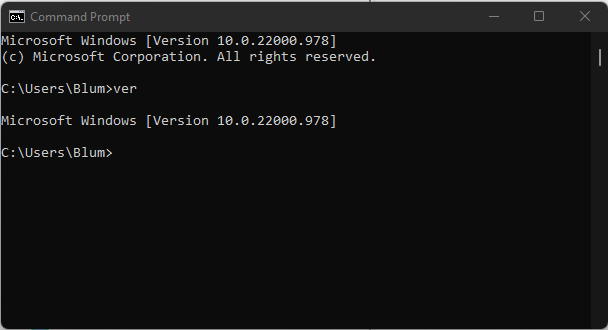
1. The fastest way is to open the command prompt and type: ver; this option is great as you get the information directly from the terminal. The problem with this option is that only the build number is shown.
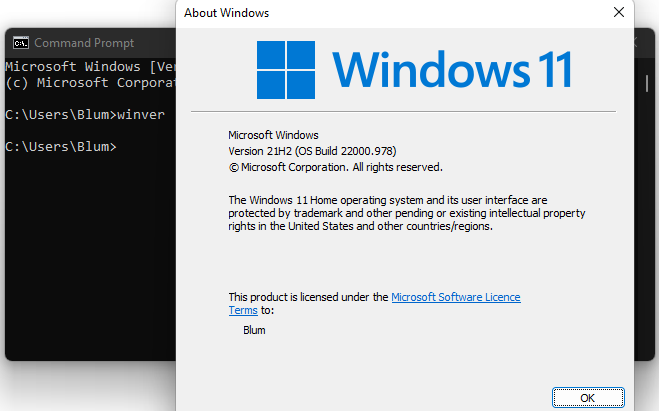
2. Terminal command with GUI window. If you type winver in the command prompt. This option also shows the Windows version, but a GUI window is opened.
3. System information
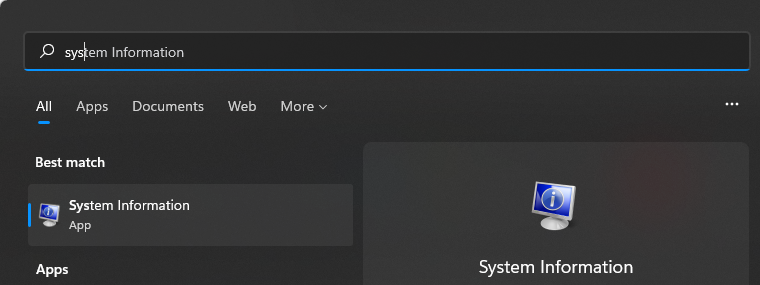
Click on start and start typing System information, an Icon System Information will be shown. Click the icon to open it.
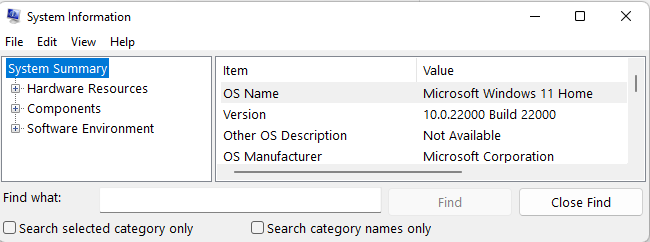
A benefit of System Information is that it will show you all information about your computer, including computer name, CPU, RAM, etc…
4. Settings
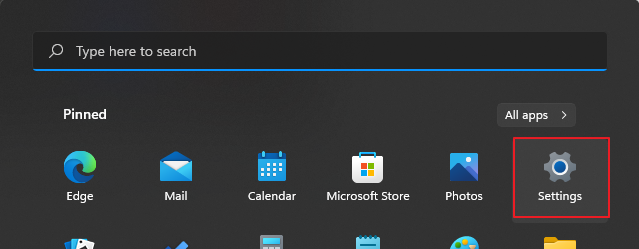
Click on the start, and click on the Settings Icon.
Click on System and About
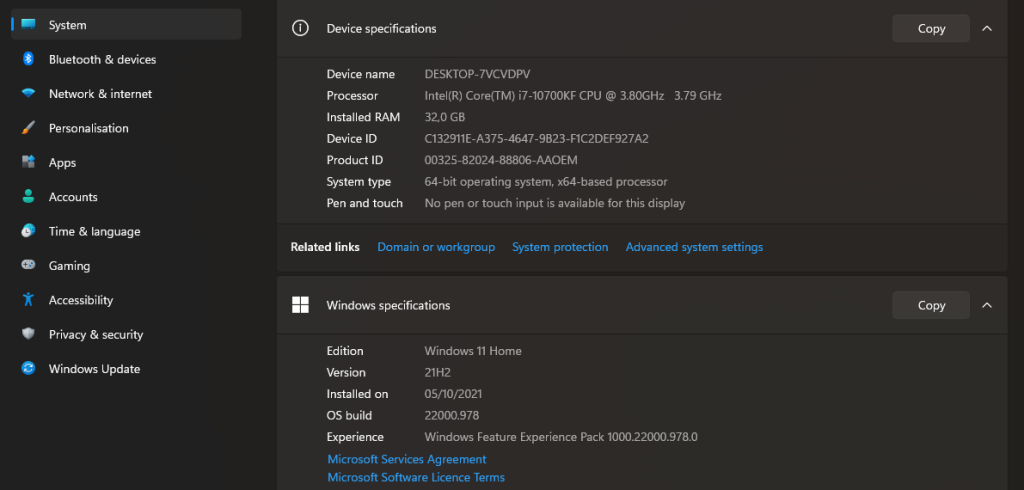
Here on the Windows specifications, you can see the Windows version and Windows build.
Surely, there may be another way to show the information, but the ones listed here are the simplest and work on Windows 10 and Windows 11.

Leave a Reply