
Most organisations back up their file servers, virtual machines and – increasingly – Microsoft 365 mailboxes and SharePoint. But the system that controls access to all of them often has no backup at all: Microsoft Entra ID, formerly Azure Active Directory.
That’s a problem. Entra ID holds your users, groups, app registrations, Conditional Access policies and authentication settings. If an attacker or a tired admin deletes or changes the wrong thing, people can’t sign in, security controls disappear, and every other recovery effort stalls – because you can’t restore anything if nobody can log in.
This article explains what Microsoft protects natively, where the gaps are, and how to build a proper Entra ID backup strategy.
What can go wrong
Accidental deletion. An admin deletes a group used for app assignment or licensing. Hundreds of users lose access to an application – or their licences – instantly.
Misconfiguration. A Conditional Access policy is changed during troubleshooting and never reverted. MFA silently stops applying to a group of users.
Malicious changes. After compromising a privileged account, attackers often create backdoor accounts, add credentials to app registrations, modify federation settings or delete Conditional Access policies to weaken defences.
Sync problems. A misconfigured Entra Connect or Cloud Sync job can mass-modify or delete synced objects.
In every case, the question is the same: what did it look like before, and how fast can we put it back?
What Microsoft protects natively
1. The recycle bin (soft delete)
Some object types are soft-deleted when removed: they move to the Entra ID recycle bin with all their properties and can be restored for 30 days. According to Microsoft’s documentation, this covers:
- Users
- Microsoft 365 Groups
- Cloud security groups
- Applications and service principals
After 30 days – or if an admin empties the recycle bin – they are permanently gone.
All other object types are hard-deleted immediately and must be recreated manually.
Also important: misconfigurations don’t use the recycle bin at all. If someone changes an attribute, a group membership or a policy, the recycle bin doesn’t help.
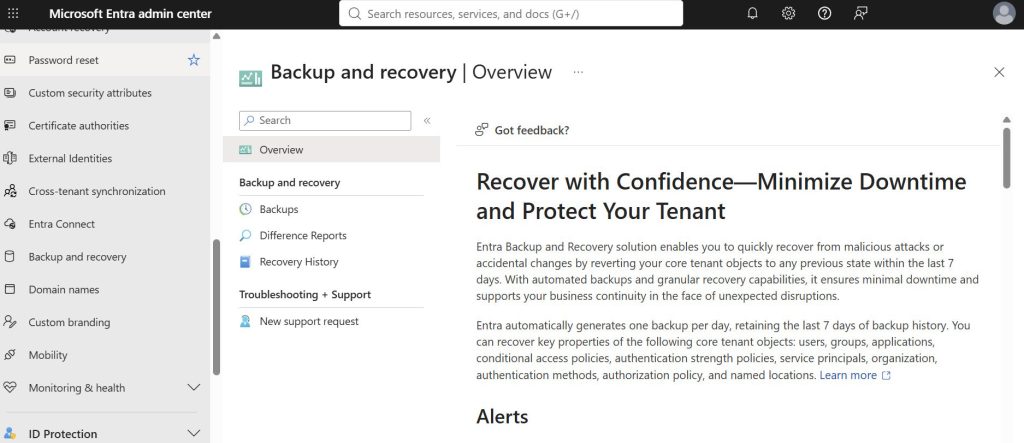
2. Microsoft Entra Backup and Recovery
In 2026, Microsoft introduced Microsoft Entra Backup and Recovery, a native service in the Entra admin center. It went into public preview in March 2026 and has since rolled out more broadly. Key points:
- Automatic daily snapshots with a short rolling retention (a few days – check the current documentation)
- Covers users (core attributes), groups and memberships, applications and service principals, Conditional Access policies and named locations, the authentication methods policy and authorisation policy, and managed identities
- Difference reports that show what has changed since a snapshot
- Targeted restore of all objects, specific object types or individual objects
- Backups can’t be modified or deleted – even by a compromised Global Administrator
- Included with Entra ID P1/P2 licences, no extra storage cost
This is a big improvement – but it has clear limits:
- Short retention. If you discover a malicious change after a week, the clean snapshot may already be gone. Attackers often stay hidden much longer.
- Hard-deleted objects can’t be restored.
- Passwords aren’t backed up. Restored users may need new passwords and MFA re-registration.
- Objects synced from on-premises AD aren’t restored – they must be recovered in AD itself.
- Not every setting is covered – for example, some legacy MFA and federation settings.
What a proper Entra ID backup strategy looks like
Think of Microsoft’s native tools as your first line of defence for quick fixes. For real resilience, you need long-term, independent, versioned copies of your configuration.
Step 1: Turn on and learn the native tools
- Make sure your admins know how to restore from the recycle bin (Entra admin center → Users / Groups → Deleted).
- Explore Entra Backup and Recovery, assign the Backup Reader and Backup Administrator roles to the right people, and practise a difference report and restore in a test tenant.
Step 2: Export configuration to an external, versioned repository
Microsoft’s own recoverability guidance recommends regularly exporting your tenant configuration to an external repository such as GitHub or Azure DevOps. Options include:
- Microsoft Entra Exporter – an open-source tool from Microsoft that exports directory objects and settings to JSON via Microsoft Graph
- Tenant configuration management (TCM) snapshots – but these are stored for only 7 days, so download them
- Microsoft365DSC – a community-driven PowerShell DSC module that can export, compare and re-apply Entra and Microsoft 365 configuration
- Your own Graph API scripts for anything else
Run exports on a schedule (daily or weekly), commit them to Git, and you get a full version history: every change is visible as a diff.
Step 3: Manage Conditional Access as code
Conditional Access policies are your most important security controls – and a favourite target for attackers. Store them as JSON in Git and deploy changes through a pipeline using the Microsoft Graph Conditional Access APIs. Restoring a policy then means re-applying a known-good file.
Step 4: Consider a third-party Entra ID backup
Several backup vendors now offer Entra ID protection, usually as part of their Microsoft 365 backup product. Look for:
- Long retention (months or years, not days)
- Coverage of users, groups, roles, apps, service principals, Conditional Access, authentication policies and audit logs
- Attribute-level comparison and granular restore
- Immutable storage outside your Microsoft tenant
- Support for hard-deleted objects (by recreating them from backup)
Our comparison of Microsoft 365 backup solutions is a good starting point.
Step 5: Protect on-premises AD too
If you use hybrid identity, Active Directory remains the source of truth for synced objects. Entra backups won’t restore them. Make sure you have system state backups of domain controllers, the AD recycle bin enabled, and a tested AD forest recovery plan. Tools like Lepide or Adaxes can help with auditing and object-level changes.
Step 6: Monitor and limit who can break things
Backups are the last line of defence. Reduce the need for them:
- Use least-privilege roles (e.g. User Administrator instead of Global Administrator)
- Use Privileged Identity Management for just-in-time elevation
- Protect sensitive operations – such as hard deletion and Conditional Access changes – with protected actions
- Send Entra audit logs to a SIEM and alert on deletions, policy changes and new credentials on app registrations
- Keep break-glass accounts excluded from Conditional Access and stored securely
Entra ID backup checklist
- Admins trained on recycle bin restore
- Entra Backup and Recovery enabled, roles assigned, restore tested
- Scheduled export of tenant configuration to a versioned Git repository
- Conditional Access policies stored and deployed as code
- Long-term backup (third-party or own tooling) with retention of 90+ days
- Domain controller backups and AD forest recovery plan (hybrid environments)
- Audit logs exported to a SIEM with alerts on critical changes
- PIM and least-privilege roles in place
- Break-glass accounts documented and tested
- Restore rehearsed in a test tenant at least once a year

Leave a Reply